Integrations
Connecting BimZone to the systems around it: Autodesk Construction Cloud, Procore and Planon at project level; accounting, API keys, outgoing webhooks, OAuth applications, SCIM and single sign-on at workspace level. This page also explains how sync conflicts are detected and resolved.
Related: Workspace & projects · API reference · operator runbook ACC / Procore activation · Known external blockers
Project integrations (ACC, Procore, Planon)
What it does
Per-project vendor connections. Autodesk Construction Cloud syncs issues and RFIs and imports models; Procore syncs issues (as observations) and RFIs both ways: a later BimZone edit to a record BimZone created is sent as an update, and refused as a conflict if Procore changed it too; Planon pushes and pulls assets and spaces: BimZone owns the GUID and asset tag, and the master-data (serial, manufacturer, model, dates, maintenance interval; space usage, occupancy, department, area) may be edited on either side. Every connection has a Sync ledger with an outcome per record and a Conflicts tab where both-sides-changed records are resolved one at a time.
Who uses it and why
Project admins connect; coordinators live with the results. Connecting uses your own vendor account: "you authorize BimZone on the vendor's site and tokens are stored encrypted."
Prerequisites
- Project role Admin; the workspace plan must include integrations (the free plan does).
- ACC / Procore: the operator must have registered BimZone as an app with the vendor and set the client credentials on the server (see the activation runbook); you need a vendor account with access to the hub/company and project.
- Planon: a Planon base URL (https, publicly resolvable) and an API key. The URL may be left
blank only when the deployment sets a default (
PLANON_BASE_URL); without either, the connection cannot sync and the schedule skips it. - Sync runs on vendor webhooks (registered by the operator), on manual Sync now / Push / Pull, and on a schedule: every 30 minutes a linked ACC, Procore or Planon connection that has not reconciled in the last 25 is reconciled, and one in error is retried once it has been untouched for two hours. A connection that is not linked yet (ACC before Import selected, Procore before Link, Planon with no base URL) is skipped by the schedule rather than errored.
Step-by-step
- Project › Overview › Integrations tab.
- ACC: on the card press Connect (later Re-authorize) — you are sent to Autodesk to consent and return. Under Live connections the ACC row appears CONNECTED with "never synced". In Import models from Autodesk Construction Cloud pick the Hub and Project, tick models, Import selected. Issue/RFI sync runs on ACC webhooks and on Sync ledger › Sync now (push).
- Procore: Connect on the card (OAuth), then in the row pick the company and project ("Change Procore project" later — this forgets the links to the old project's items: BimZone's own issues and RFIs are pushed into the new one, and those pulled from the old one stay here as local records). Use Push (BimZone → Procore), Pull (Procore → BimZone) or Sync ledger › Sync now (both).
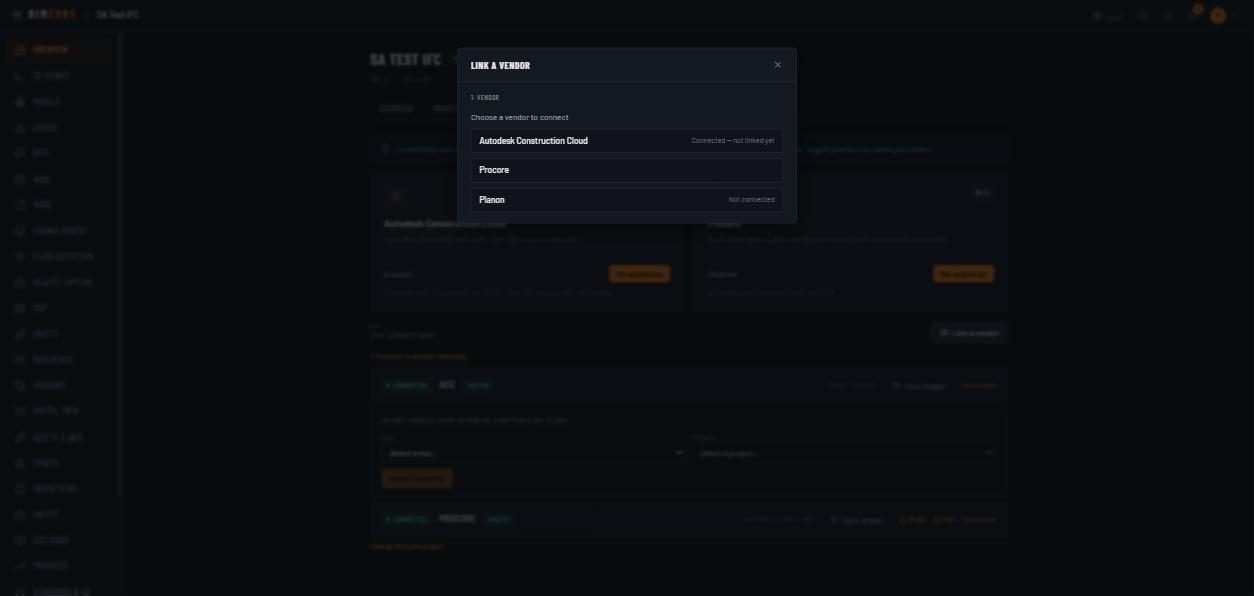
- Planon: Link a vendor › Planon › Base URL (optional) + API key › Connect (or + Connect a vendor manually with Auth API key / Username / password / OAuth2 token). Sync with Sync ledger › Sync now.
- Read the Sync ledger: filter All / OK / Skipped / Conflict / Error; each row shows Time,
Direction (push/pull), Entity, Outcome and the vendor's own message (for example "Procore create
RFI failed (404)" or
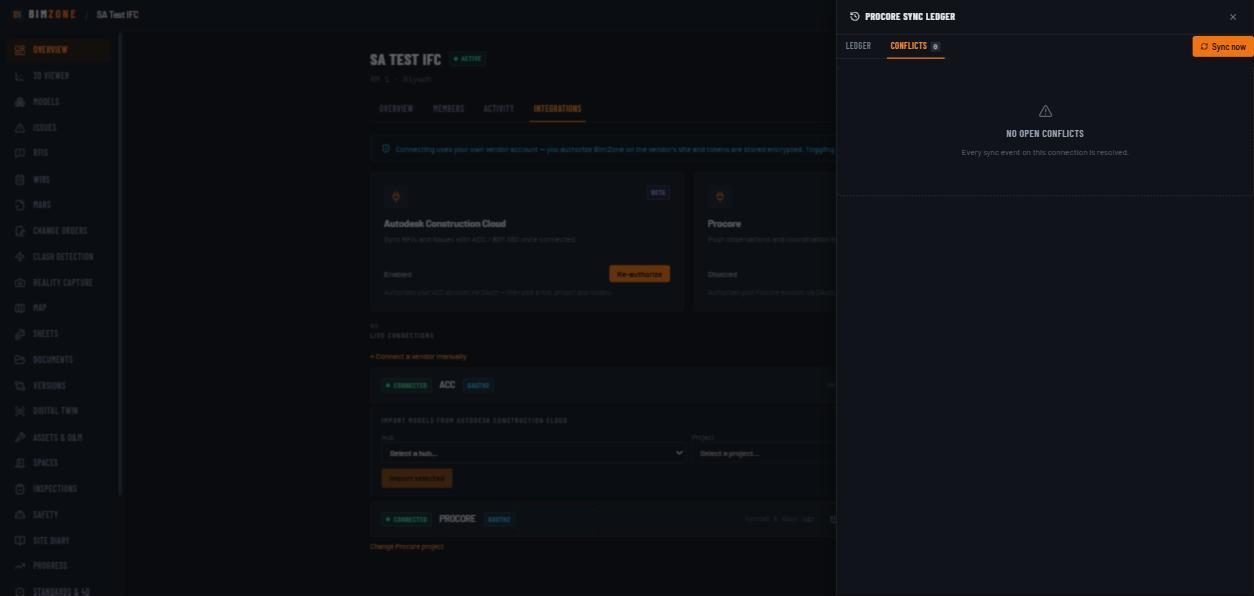
{"reason":"unchanged"}). - Resolve conflicts on the Conflicts tab: for each record choose Keep local (BimZone wins; the next push overwrites the vendor) or Take remote (the vendor wins; the next pull applies its fields). The choice runs the sync immediately and is audited.
- Disconnect purges the stored credentials and marks the row disconnected; mappings and the ledger are kept.
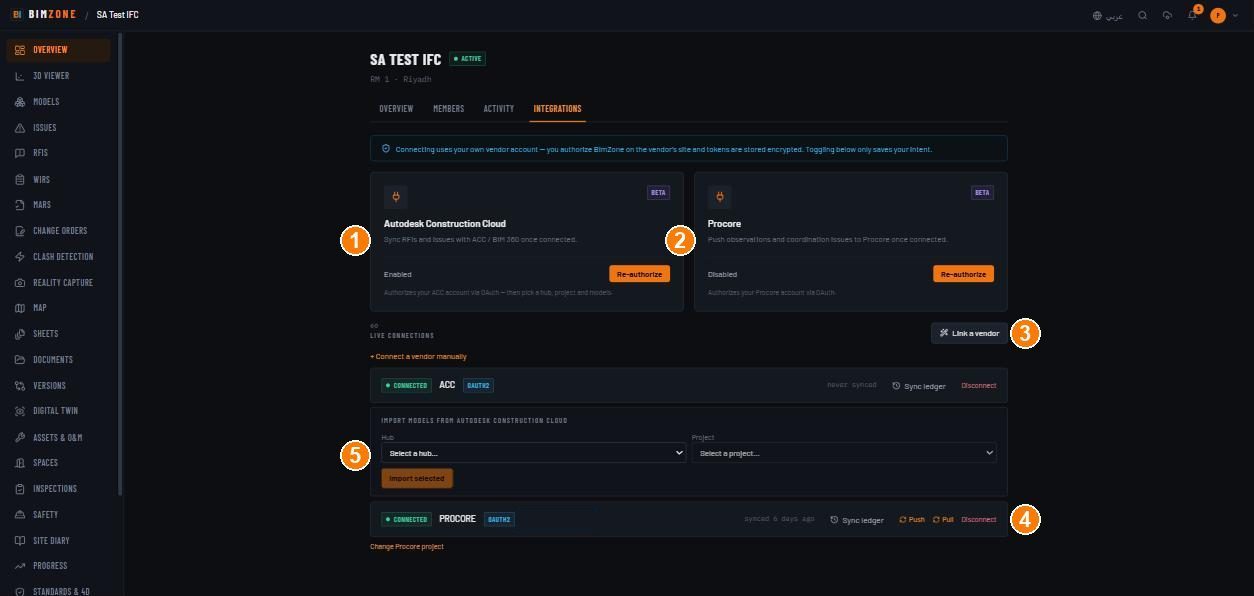
1 · ACC card (Connect / Re-authorize, enabled toggle) · 2 · Procore card · 3 · Link a vendor wizard · 4 · connection row actions (Sync ledger, Push, Pull, Disconnect) · 5 · Import models from ACC
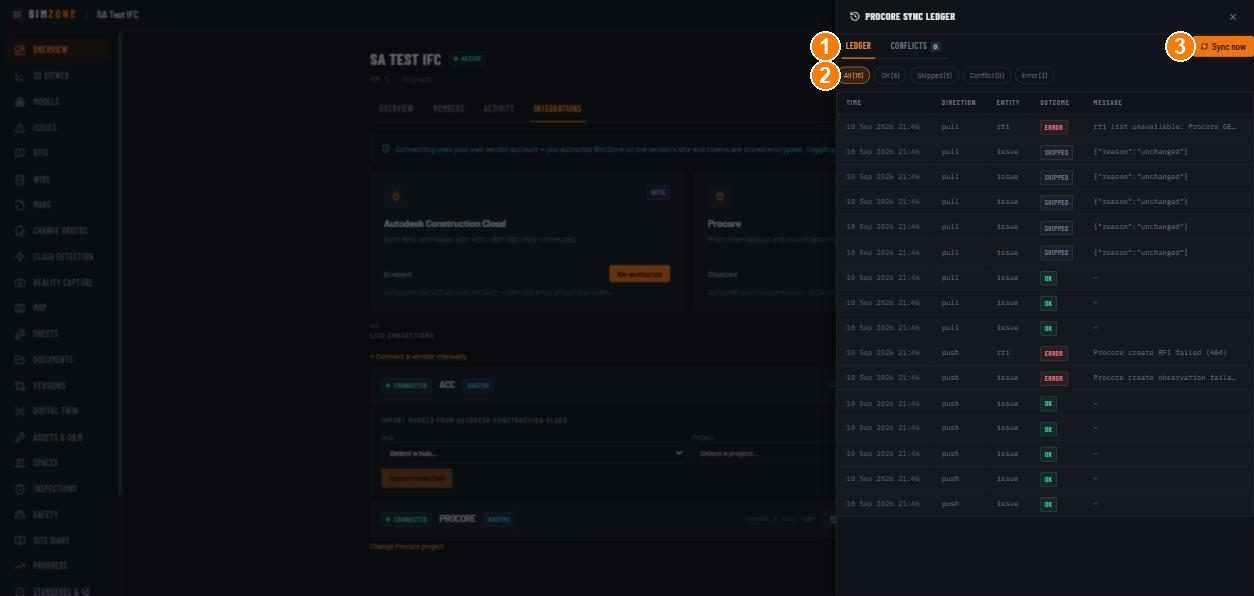
1 · Ledger / Conflicts tabs · 2 · outcome filters · 3 · Sync now
Controls
- Cards: ACC — "Sync RFIs and issues with ACC / BIM 360 once connected." · Procore — "Push observations and coordination issues to Procore once connected." Each has Enabled / Disabled (saves intent only) and Connect / Re-authorize.
- Live connections: Link a vendor (wizard: 1 · Vendor → 2 · Connect / Project) · + Connect a vendor manually · per row: status pill (connected / error / disconnected / needs authorization / syncing…), vendor, auth kind, linked company/project, last synced, Sync ledger, Push, Pull, Disconnect, Change Procore project; ACC: Hub, Project, Import selected.
- Sync ledger drawer: Ledger (filters, table) · Conflicts (n) (per record Take remote / Keep local) · Sync now.
What happens after
- A push creates or updates the vendor record and stores the vendor's etag on the link; a pull applies vendor changes to local records that have not changed locally.
- Conflict rule: before pushing, BimZone re-reads the vendor record; if its etag differs from the one stored at the last sync and the local record changed since, nothing is written and the record is logged as conflict. Before pulling, a locally-changed record is likewise not overwritten. Only an explicit per-record resolution moves it.
integrations.syncedandintegrations.conflict_resolvedare audited.
Connections to other modules
Issues (ACC issues, Procore observations), RFIs (ACC, Procore), Models (ACC import), Assets & Spaces (Planon), Audit log.
Data in / data out
Out to vendors: issues/RFIs/observations, assets/spaces. In: vendor issues/RFIs/observations, imported models. Credentials never leave the encrypted store and are never shown again.
Permissions and approval
Connect, disconnect, push, pull, resolve conflicts: project Admin. Read the ledger: any member.
Common mistakes and troubleshooting
- "Procore create RFI failed (404)" / "rfi list unavailable" — the RFI tool is not enabled on that Procore project; enable it in Procore or accept that only observations sync.
- ACC shows "never synced" — pick a hub and project first; ACC issue sync also needs the operator's webhook registration.
- Status pill "needs authorization" — the vendor token expired; Re-authorize.
- Take remote changed nothing — it resets the connection's watermark and pulls; if the vendor record is unchanged since your last sync, there is nothing to take.
config.baseUrl rejected(Planon) — the URL must be https and resolve to a public address.- Browser autofilled the API key with your login password — clear the field; vendor credential fields are not your BimZone login.
Limitations and integration prerequisites
- Linked ACC, Procore and Planon connections also sync on a 30-minute schedule.
- ACC manual sync is push-only; pulls come from ACC webhooks.
- Deleted in the vendor. When a linked Procore observation or RFI no longer appears in Procore's
list, BimZone keeps its record and stops syncing it; the ledger shows
remote-deleted. A record that came from Procore and was not edited here since the last sync is closed; anything edited here keeps its status. Nothing is deleted in BimZone, and a record restored in Procore syncs again (one closed here only because Procore deleted it reopens). Only an item that a Procore list has contained since it was linked (from this release on) is watched this way; one already Verified is not changed. This relies on Procore's list including closed items and honouring its page size; a failed or malformed list deletes nothing, and an item a list missed is restored by the next one. ACC issues cannot be deleted, only voided; an ACC status ofvoid(the BIM 360 name, not yet confirmed on a live ACC tenant) closes the issue here. Planon deletions are not detected. - Deleting a record in BimZone does not delete the vendor's copy.
- An issue pulled in from another vendor (a Procore observation, say) is not pushed to ACC; it stays with the vendor it came from.
- Planon records carry no modified date, so a change is found by comparing field values: every sync looks up each of the project's assets and spaces in Planon, and a large register makes for a long run.
- A Procore RFI that was created in Procore is pulled, never pushed back: an edit made to it in BimZone stays in BimZone. The same holds for Procore observations pulled as issues. For such a record Keep local cannot win (nothing is sent to Procore) and the conflict stays listed; use Take remote.
- Other vendors need their adapter to exist in the build; the Link a vendor list is the truth.
Where to go next
Accounting · API keys and outgoing webhooks.
Revit connections
What it does
Shows which Revit documents publish into this project through the BimZone Revit add-in, from which user and add-in install, and how their publishing is going. It is monitoring: it records what the add-in and the uploads report, and it never changes how a model is versioned — the upload decides that, exactly as for any other upload (see Revising a model).
Who uses it and why
Project admins and coordinators, to see whether the Revit side of a project is actually publishing: which documents are live, which have gone quiet, and which publishes failed.
Prerequisites
The BimZone add-in in Revit 2024 (see integrations/revit-addin/README.md), signed in, with this project
selected. Any project member's add-in registers; publishing a model needs the upload role.
Step-by-step
- Open the project, then the Integrations tab. Revit connections is below the vendor integrations.
- Read one row per Revit document per add-in install. Refresh re-reads it; it also refreshes every minute.
- Admins: Remove › Confirm remove retires a registration (the add-in registers again the next time it is used with this project).
Controls
Refresh · per row (admins) Remove › Confirm remove / Cancel.
What happens after
The add-in registers when a project is selected (including the one chosen automatically at sign-in) and before each publish, and checks in every few minutes while signed in; signing out marks it Disconnected. A publish is recorded on the row by the upload itself when it arrives. (This is the add-in's protocol as built and tested outside Revit — it has not yet been run inside Revit.)
Connections to other modules
The BimZone model column is the model history the document's publishes went into — the same history as Models › Version history.
Data in / data out
In: the add-in's registration (document name, a fingerprint of the document's identity, add-in and Revit versions), its check-ins, and its reports of a publish starting or failing; and the model uploads themselves. The registration does not ask for the document's file path: the add-in sends a one-way (SHA-256) fingerprint of its document identity instead, plus the document's name.
Permissions and approval
Any project member can see the list. Only a project admin can remove a registration. An add-in can only check in or report for its own registration.
Common mistakes and troubleshooting
- Stale — the add-in has not checked in for over 15 minutes: Revit closed without signing out, the machine is offline, or a different project is selected in the add-in. It is not an error by itself.
- Connected does not mean Revit has the file open — it means the add-in, signed in with this project selected, checked in recently.
- Stalled — the add-in reported a publish starting and nothing has arrived for an hour.
- Failed — the add-in reported a failure (export or upload); the message is the add-in's own.
- A document saved under a new name appears as a new row, and publishes into a new model unless one has that name — the add-in's documented rename rule.
Limitations and integration prerequisites
- Publish started and Publish failed are reported by the add-in; the server cannot observe an IFC export inside Revit. A successful publish is recorded by the upload itself.
- Rows are not removed automatically; a retired install stays Stale until an admin removes it.
- One user holds at most 50 registrations per project. A new document beyond that replaces that user's oldest registration that is not currently connected; only if all 50 are live is it refused. The list shows the 500 most recently seen.
- The add-in has been compiled and its upload path tested, but it has not yet been run inside Revit.
Where to go next
Models and viewer · Accounting.
Accounting
What it does
Pushes customers, invoices, vendor bills and cost codes to an accounting system. "BimZone works fully without one."
Who uses it and why
Finance, when the company wants project costs mirrored in its books.
Prerequisites
Workspace admin. A provider with an available adapter — today Odoo. QuickBooks Online, Xero, Zoho Books, Microsoft Dynamics 365, Oracle ERP, SAP S/4HANA and Sage are listed as Pending ("Listed so an unsupported provider is distinguishable from a disconnected one. Availability here means BimZone's adapter exists — not that it has been verified against a live account.").
Step-by-step
- Workspace settings › Accounting › connect Odoo (base URL, credentials).
- Watch Entity mapping ("Which BimZone record is which record in the provider, and when it last synced."). Retry connection if the provider stops answering; Disconnect keeps the mappings.
Controls
Provider catalogue · connection card (Provider, Authentication, Connected / Failing / Disconnected, "Last successful sync …", Retry connection, Disconnect) · Entity mapping table.
What happens after
Records sync on their events; failures show as Failing with the provider's message.
Connections to other modules
Takeoff & Cost (cost codes), Change Orders (commercial context only).
Data in / data out
Out: customers, invoices, vendor bills, cost codes.
Permissions and approval
Workspace admin only ("Only workspace admins can retry or disconnect.").
Common mistakes and troubleshooting
- "
has no adapter in this build yet — pending decision …" — choose Odoo or wait for the adapter.
Limitations and integration prerequisites
One provider per workspace; adapters other than Odoo are not shipped.
Where to go next
API keys and outgoing webhooks.
API keys and outgoing webhooks
What it does
Scoped service-account keys for BI feeds, gateways and scripts, and outgoing webhook subscriptions that call your endpoint when things happen.
Who uses it and why
BI analysts, IoT integrators, developers.
Prerequisites
Workspace admin to create keys. Read the API reference for endpoints, errors, pagination, rate limits and versioning.
Step-by-step
- Workspace settings › API keys: Key name, Scope (Read · Write · Admin), Create key. Copy the key — it is shown once.
- Call the API with header
X-Api-Key: bz_…(or a user bearer token). Feeds:GET /api/feed/issues?format=csv,/rfis,/clashes,/photos,/projects. Sensor ingest:POST /api/projects/:id/sensors/readings(Write). - Webhooks:
POST /api/v1/webhooks(Write scope) returns the signingsecretonce. Every delivery carriesX-BimZone-Delivery-Id(your idempotency key),X-BimZone-Event,X-BimZone-TimestampandX-BimZone-Signature(sha256=<hex>HMAC over${timestamp}.${rawBody}). Delivery is at-least-once; retries six times then dead-letters; five consecutive dead-letters disable the subscription (active,disabledReasoninGET /api/v1/webhooks).
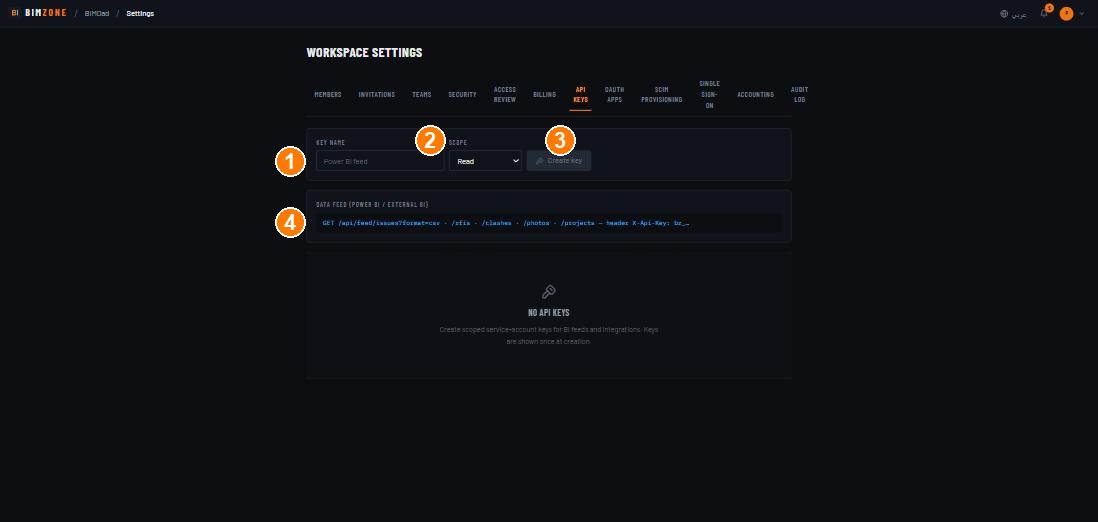
1 · Key name · 2 · Scope · 3 · Create key · 4 · the BI feed URLs
Controls
Key form · key list (name, prefix, scope, last used, revoked) · revoke. Webhooks are API-managed (no UI).
What happens after
Keys are hashed at rest; the prefix is shown for identification. Revoked keys fail with 401.
Connections to other modules
Analytics feeds, Sensors, Automation (rules run server-side without keys), external systems.
Data in / data out
Out: whatever the feed or webhook event carries (see the API reference's event list).
Permissions and approval
Workspace admin creates and revokes keys. A key acts within its scope only.
Common mistakes and troubleshooting
- 401 on a feed — wrong header name (
X-Api-Key), revoked key, or Read scope missing. - Duplicate webhook deliveries — expected; deduplicate on
X-BimZone-Delivery-Id. - Subscription disabled — five consecutive dead-letters; fix the endpoint and create it again.
Limitations and integration prerequisites
Webhook subscriptions have no UI; the secret cannot be re-shown.
Where to go next
OAuth applications
What it does
Lets third-party applications ask members for delegated access (authorization-code flow with PKCE), and lets admins review, suspend and revoke what has been authorised.
Who uses it and why
Workspace admins and the developers of client apps.
Prerequisites
Workspace admin (owner for some actions, as the screen indicates).
Step-by-step
- Workspace settings › OAuth apps › Register app: name, redirect URIs, allowed scopes, confidential or public. Copy the client secret — shown once.
- The app runs the authorization-code + PKCE flow against BimZone's authorization server (discovery
at
/oauth/.well-known/oauth-authorization-server). - Authorized applications lists grants members have given; Revoke kills that grant's tokens.
- Containing a leak: Suspend the app ("refuses every new authorization immediately and is reversible; the client ID survives"). Delete does both and cannot be undone.
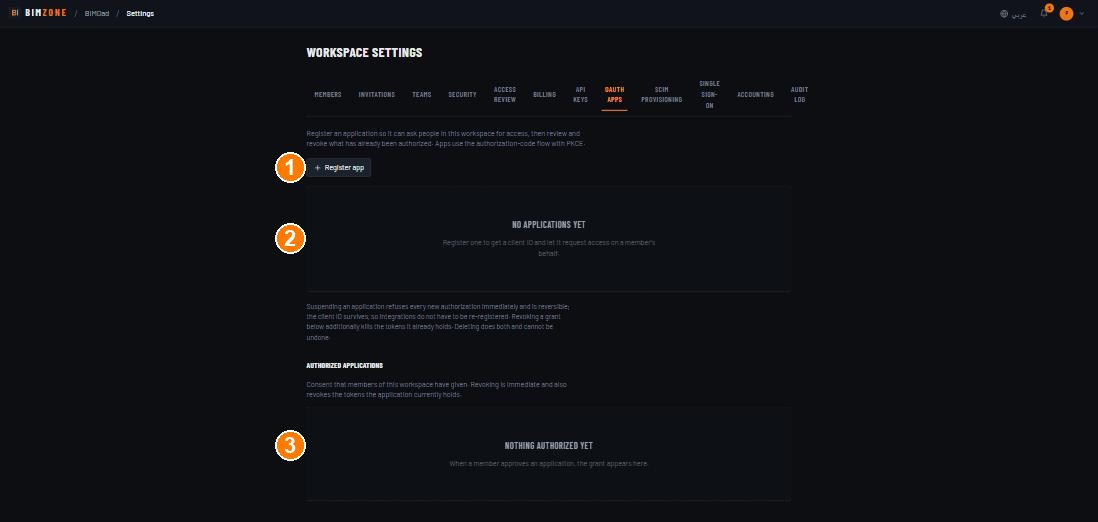
1 · Register app · 2 · registered applications · 3 · authorized applications (grants)
Controls
Register app · per app: edit (redirect URIs / scopes validated exactly as at registration), Suspend, Delete · grants list with Revoke.
What happens after
oauth.app_registered / app_updated / app_deleted are audited. Suspended apps fail authorization
immediately.
Connections to other modules
Audit log; the API surface the app calls.
Data in / data out
None beyond tokens.
Permissions and approval
Workspace admin.
Common mistakes and troubleshooting
- Redirect URI refused — the same validation applies to registration and edit; use exact, absolute URIs.
Limitations and integration prerequisites
Apps registered here talk to this deployment only.
Where to go next
SCIM provisioning · Single sign-on.
SCIM provisioning
What it does
Lets an identity provider create, update and deactivate user accounts in the workspace over SCIM 2.0
(/scim/v2, RFC 7644 Users).
Who uses it and why
IT administrators with Okta, Entra ID or similar.
Prerequisites
Workspace owner. An IdP that speaks SCIM 2.0.
Step-by-step
- Workspace settings › SCIM provisioning › New token ("Name it after the identity provider that will use it") › Create token; copy it once.
- "Point your identity provider at
/scim/v2and authenticate with the token as a bearer. Deactivating a user there deactivates them here."
Controls
Token list · New token · revoke.
What happens after
Provisioned users appear under Members; a deprovisioned user loses access immediately. The last workspace owner can never be stripped by SCIM.
Connections to other modules
Members, Access review, Audit log.
Data in / data out
In: user identities from the IdP. Out: SCIM responses.
Permissions and approval
Owner only.
Common mistakes and troubleshooting
- 409 on create — the email already belongs to a user in another workspace with an accepted membership; SCIM will not attach across tenants.
Limitations and integration prerequisites
Users only (no SCIM Groups).
Where to go next
Single sign-on (SSO)
What it does
SAML 2.0 or OpenID Connect sign-in routed by verified email domains, with the option to require SSO or disable passwords.
Who uses it and why
IT administrators; every member once it is on.
Prerequisites
Workspace owner; control of the email domain's DNS; an IdP.
Step-by-step
- Workspace settings › Single sign-on › Add a domain › publish the DNS record shown › verify.
- Identity providers: Protocol (SAML 2.0 / OpenID Connect), Display name, Login
handle ("Appears in the sign-in URL. Lower-case letters, digits and hyphens."), IdP sign-in
URL, IdP signing certificate ("Base64 certificate body. Stored encrypted and never shown
again.") — or for OIDC the issuer (
https://acme.okta.com), client ID and client secret. Add connection. "Give these two values to your IdP administrator" (the SP entity ID / ACS URL shown above the form). - Test with one user via the or continue with row on the sign-in page.
- Sign-in policy: Require single sign-on ("Members must sign in through a connection above. Passwords and passkeys are refused.") and/or Disable password sign-in ("Passwords are refused; passkeys still work."). "An owner whose email is outside your verified domains keeps password sign-in, so you cannot lock yourself out."
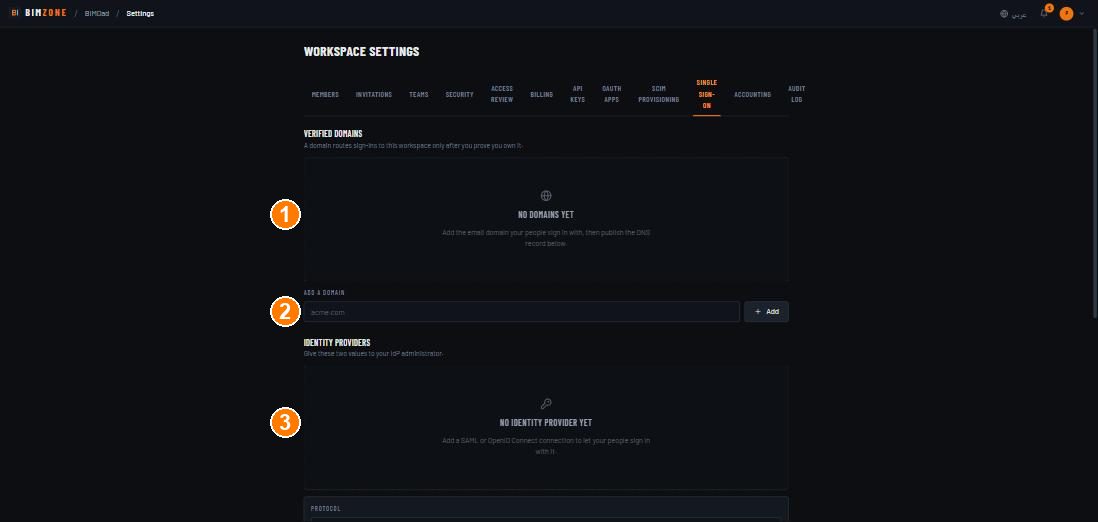
1 · verified domains · 2 · add a domain · 3 · identity providers
Controls
Domains list · Add · IdP form · connection list · policy switches.
What happens after
Sign-ins for the domain go through the IdP; MFA enforcement still applies (an SSO user without MFA is walked through enrolment).
Connections to other modules
Members, Security (MFA), Audit log.
Data in / data out
In: IdP metadata and certificate (encrypted). Out: SAML/OIDC requests.
Permissions and approval
Workspace owner (the whole SSO screen is owner-only).
Common mistakes and troubleshooting
- "SSO sign-in could not be verified — please start again from the sign-in page." — the request/response pair did not match; retry from the sign-in page.
- Locked out after requiring SSO — sign in with an owner whose email is outside the verified domains; passwords still work for them.
Limitations and integration prerequisites
One signing certificate per connection. IdP-initiated SAML is off unless the connection's
idp_initiated flag is set (an operator/API setting); SP-initiated sign-in is the default.